A tower fan that stops oscillating can often be fixed with straightforward DIY solutions, typically involving diagnosing and repairing issues with the oscillation motor, gears, or wiring. Common problems include a faulty oscillation motor, stripped plastic gears, loose electrical connections, or physical obstructions like dust and debris. By following a systematic troubleshooting process, you can restore your fan’s ability to sweep air across the room, extending its lifespan and maximizing its cooling reach.
Understanding Your Tower Fan’s Oscillation Mechanism
Tower fans are designed for efficient air distribution, and their oscillation feature is key to this performance. At its core, the oscillation mechanism typically consists of a small electric motor, often called a synchronous motor, connected to a series of plastic gears. This motor drives a shaft that physically rotates the fan housing from side to side, ensuring that air circulates more broadly throughout a space. Unlike traditional pedestal or box fans, tower fans use an internal vertical impeller or blower that draws air in from the back and expels it out the front grille. The oscillation function ensures this column of air isn’t stationary, maximizing its cooling reach. Understanding this basic interplay between the oscillation motor and gears is crucial for effective troubleshooting.
Common Reasons Why Your Tower Fan Stops Oscillating
When your tower fan refuses to oscillate, several factors could be at play, ranging from simple obstructions to internal mechanical failures. Identifying the specific issue is the first step toward a successful DIY repair. For explore our reviews reviews on this site.
Faulty Oscillation Motor
The oscillation motor is the powerhouse behind the fan’s rotational movement. Over time, like any electrical component, it can wear out or develop an internal fault. If you hear the main fan motor running but observe no movement from the oscillation mechanism, or perhaps a faint humming without rotation, a faulty oscillation motor is a likely culprit. These synchronous motors are typically low-power and can cease to function due to electrical failure or internal component breakdown.
Stripped or Damaged Gears
Inside the oscillation housing, a set of small plastic gears transmits power from the motor to the rotating base. These plastic gears are often the weakest link in the system. If the fan encounters resistance during oscillation—perhaps it’s jammed against furniture or was forced manually—the stress can cause the gear teeth to strip, break, or wear down significantly. A grinding noise when oscillation is engaged is a strong indicator of stripped gears.
Loose Wiring or Connections
Electrical connections can loosen over time due to vibrations, heat cycles, or accidental knocks. If the wires connecting the oscillation motor or its control circuit become detached or loose, the motor won’t receive power, leading to a complete cessation of oscillation. This is often one of the easier issues to diagnose and fix if you’re comfortable opening the fan’s casing.
Obstructions and Debris
|
Our Picks for the Best Tower Fan in 2026
As an Amazon Associate I earn from qualifying purchases.
|
||
| Num | Product | Action |
|---|---|---|
| 1 | Dreo Tower Fan for Bedroom, 2026 Upgraded DC Motor, 28ft/s High Velocity, 20dB Ultra Quiet Standing Fan, 8 Speeds 4 Modes, 90° Oscillating Bladeless Fan for Indoors, Floor Fans with Remote, Black |

|
| 2 | LEVOIT Tower Fan for Bedroom, 25ft/s Velocity Standing Fan with 28dB Quiet for Sleep, Remoter, 12H Timer, 5 Speeds, 4 Modes, 90° Oscillation for Home, Office, Indoor, Bladeless 36 inch, White |
|
| 3 | Honeywell QuietSet Whole Room Tower Fan-Black, Oscillating Tower Fan with Remote, HYF290B |
|
| 4 | Dreo Tower Fan for Bedroom, 25ft/s Velocity Quiet Floor Fan, 90° Oscillating Fans for Indoors with 4 Speeds, 4 Modes, 8H Timer, Bladeless Fan, Standing Fans, Silver, Nomad One (DR-HTF007) |
|
| 5 | DREO Tower Fan for Bedroom, 4 Speeds, 3 Modes Standing Fans for Room with 90° wide Oscillating, 28dB Quiet for Sleep, 25ft/s Velocity, 29ft Coverage, 8H Timer, Remote, Living Room, Office, Home, White |
|
| 6 | Lasko Elevation Adjustable Tower Fan 42”-54”, Pedestal Fan, 31 ft/s Airflow, Quiet 28 dB, 90° Oscillation, 12h Timer, Remote, Black, EST100 |
|
| 7 | Dreo Tower Fan for Bedroom, 90° Oscillating Standing Fans for Room with 4 Speeds, 3 Modes, 28dB Quiet for Sleep, 25ft/s Velocity, 8H Timer, Remote, Living Room, Office, Home, Black |
|
| 8 | PELONIS 40-Inch Tower Fan for Bedroom, Fan That Blows Cold Air, Oscillating Fan with Innovative Washable Design, 2000 CFM, 28ft/s Airflow, 4 Speeds + 2 Modes, 90° Oscillation, 23dB Quiet |
|
| 9 | Honeywell QuietSet Whole Room Oscillating Tower filter Fan with Remote, White, HYF260 |
|
| 10 | Lasko High Velocity Oscillating Tower Fan for Bedroom, Garage, Basement, and Gym with Remote Control, Timer, 3 Powerful Speeds, 35" Silver/Black, U35115 |
|
Sometimes, the simplest explanations are the correct ones. Dust, pet hair, or small foreign objects can accumulate within the fan’s base or around the oscillation mechanism, physically blocking its movement. If the fan attempts to oscillate but immediately stops or makes strained noises, an obstruction might be preventing smooth rotation. Similarly, excessive dust buildup can lead to overheating, causing the fan to intermittently shut off oscillation as a safety measure.
Unstable Positioning or Sensor Issues
While less common, an unstable base or an uneven surface can sometimes impede the oscillation function of a tower fan. Some smart fans might also have internal sensors or app settings that, if misconfigured, can affect their ability to oscillate correctly. Ensuring the fan is on a flat, stable surface is a quick check to rule out environmental factors.
Safety First: Before You Begin Any DIY Repair
Before you attempt any internal repairs on your tower fan, prioritize your safety. Working with electrical appliances requires caution to prevent injury or further damage to the unit.
- Unplug the Fan: Always disconnect the fan from the power outlet before opening its casing or touching any internal components. This is the most critical safety step.
- Gather Your Tools: Have the necessary tools on hand, such as screwdrivers (Phillips and flathead), needle-nose pliers, a multimeter (optional, for electrical checks), and potentially some lubricant or replacement parts.
- Consult the Manual: If you still have the owner’s manual, quickly review it for any specific disassembly instructions or warnings related to your model.
- Work in a Well-Lit Area: Ensure your workspace is clean, clear, and brightly lit, allowing you to clearly see all small components and wiring.
Step-by-Step DIY Troubleshooting and Repair Guide
Once you’ve taken the necessary safety precautions, you can begin the process of diagnosing and repairing your tower fan’s oscillation issue.
Step 1: Basic Checks and External Inspection
Before reaching for your screwdriver, start with the simplest checks.
- Power and Stability: Ensure the fan is securely plugged into a functioning outlet and placed on a flat, stable surface. An uneven base can sometimes hinder oscillation.
- Oscillation Button/Setting: Double-check that the oscillation function is actually turned on. Many fans have a dedicated button on the control panel or a setting in a companion app for smart fans.
- External Obstructions: Visually inspect the fan’s base and body for anything that might be physically blocking its rotation, such as cables, curtains, or small objects.
- Reset the Fan: Unplug the fan from the power source, wait for about 30 seconds, and then plug it back in. This can sometimes reset the internal electronics and resolve minor glitches.
Step 2: Accessing the Internal Components
If the basic checks don’t resolve the issue, it’s time to open the fan’s casing. This typically involves removing screws from the back or bottom panel.
- Locate Fasteners: Look for screws (usually Phillips head) on the back, bottom, or sometimes along the sides of the tower fan. Some models may have hidden clips or tabs that need to be gently pried open with a flathead screwdriver or plastic pry tool.
- Careful Disassembly: Once all screws are removed, carefully separate the casing halves. Be gentle, as internal wires might still connect the two sections. Make a mental note or take photos of how components are arranged for easier reassembly.
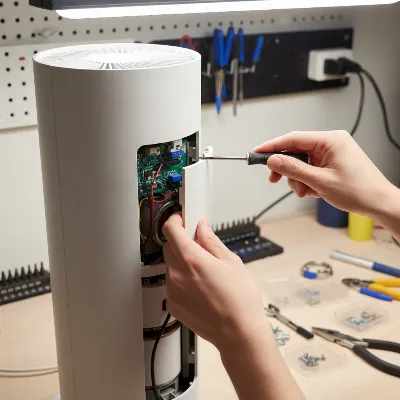 Disassembling a tower fan's outer casing to reveal internal parts.
Step 3: Inspecting the Oscillation Motor and Wiring
With the casing open, you can now inspect the heart of the oscillation system.
- Locate the Oscillation Motor: The oscillation motor is typically a smaller motor located near the base of the fan, often separate from the main fan motor. It will have wires running to it and will be connected to the gear assembly.
- Check for Loose Wires: Carefully inspect all wires connected to the oscillation motor and its control board. If any wires are loose or disconnected, firmly push them back into place. Ensure there’s no visible damage to the wire insulation.
- Motor Function (Advanced): If you have a multimeter and are comfortable with electrical testing, you can test the continuity or voltage supply to the oscillation motor. However, for most DIYers, a visual inspection and checking for loose wires are sufficient. If the motor hums but doesn’t turn the gears, it likely needs replacement.
Step 4: Examining and Repairing the Oscillation Gears
The gears are a common point of failure, particularly if the fan has been under stress.
- Locate the Gear Assembly: The gears are usually housed in a small gearbox directly connected to the oscillation motor and the fan’s rotating shaft.
- Inspect for Damage: Carefully examine the teeth of all visible gears. Look for signs of wear, chips, cracks, or completely stripped teeth. Plastic gears can become brittle over time. If a gear is severely damaged, it will need to be replaced.
- Cleaning and Lubrication: Even if gears aren’t stripped, accumulated dust and grime can create friction, preventing smooth movement. Use a soft brush, compressed air, or a cotton swab with a small amount of rubbing alcohol to clean the gears thoroughly. If there’s a pivot pin or shaft, you might gently sand it with fine-grit sandpaper (600-grit) to remove any burrs, then apply a small amount of silicone-based grease or a similar plastic-safe lubricant to the gears and pivot points.
- DIY Fixes for Minor Wear: For very minor wear on plastic gears, some users have attempted to rebuild worn teeth using fiberglass resin, though this requires precision and can be a temporary fix. For most cases, if the gears are damaged, a replacement gearbox is the most reliable solution. Universal oscillation gearboxes are available and can often be swapped in for the damaged unit.
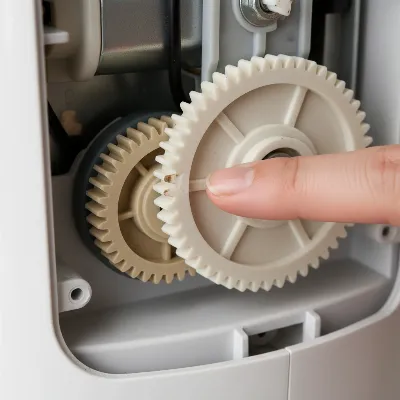 Close-up inspection of damaged oscillation gears inside a tower fan.
Step 5: Addressing Other Potential Issues
Beyond the motor and gears, consider these less common but possible factors:
- Overheating and Dust Removal: If your fan has been running continuously or in a very dusty environment, internal dust buildup can cause the motor to overheat and potentially shut down the oscillation function. With the casing open, use compressed air or a soft brush to thoroughly clean any dust from the motor, circuit board, and vents.
- Reassembly and Testing: Once you’ve inspected and repaired the components, carefully reassemble the fan casing, ensuring all screws are tightened. Before fully buttoning it up, you can often perform a quick test by plugging it in (briefly and cautiously) to see if the oscillation function is restored. If it works, unplug, finish securing the casing, and then test again.
When to Consider Professional Repair or Replacement
While many oscillation issues are fixable with a DIY approach, there are times when professional help or a complete replacement might be more practical.
- Complex Electrical Issues: If troubleshooting points to a problem with the main circuit board or more complex electrical wiring, and you’re not experienced with such repairs, it’s best to consult a professional to avoid further damage or safety hazards.
- Motor Replacement Difficulty: While oscillation motors are replaceable, sourcing the exact part for older or less common models can be challenging.
- Cost vs. New Fan: Weigh the cost of replacement parts and your time against the price of a new tower fan. For older, inexpensive models, a replacement might be more economical, especially if multiple components are failing.
Conclusion
A tower fan that won’t oscillate can be an annoyance, but it doesn’t always mean the end of its life. By systematically checking for common issues like faulty motors, stripped gears, loose wiring, or simple obstructions, you can often bring your fan back to full functionality. Always prioritize safety by unplugging the unit before any internal inspection or repair. Regular cleaning and mindful use can also extend the life of your fan’s oscillation mechanism. So, why not roll up your sleeves and give your fan a new lease on life? What small repair has given you the most satisfaction?
Frequently Asked Questions
What tools do I need to fix my tower fan?
For most DIY tower fan oscillation repairs, you’ll need basic tools such as Phillips and flathead screwdrivers, possibly a pair of needle-nose pliers, a soft brush or compressed air for cleaning, and a plastic-safe lubricant. A multimeter is optional for electrical checks.
Can I prevent my tower fan from stopping oscillation?
Yes, regular maintenance can help. Keep your fan clean by dusting it periodically, especially the base and internal components. Avoid forcing the fan to oscillate if it feels stiff, and ensure it’s placed on a stable surface, free from obstructions, to prevent damage to the gears or motor.
Is it safe to repair a tower fan myself?
It can be safe if you follow proper safety guidelines. Always unplug the fan from the power source before performing any internal inspection or repair. If you are uncomfortable with electrical components or the repair seems beyond your skill level, it is safer to consult a professional or consider replacing the fan.
Frequently Asked Questions
What tools do I need to fix my tower fan's oscillation?
For most DIY tower fan oscillation repairs, you will need basic tools such as Phillips and flathead screwdrivers, needle-nose pliers, a soft brush or compressed air for cleaning, and a plastic-safe lubricant. A multimeter is optional for electrical checks to test continuity or voltage supply.
Can I prevent my tower fan from stopping oscillation in the future?
Yes, regular maintenance can help prevent oscillation issues. Keep your fan clean by dusting it periodically, especially the base and internal components. Avoid forcing the fan to oscillate if it feels stiff, and ensure it's placed on a stable, obstruction-free surface to prevent damage to the gears or motor.
Is it safe to repair a tower fan's internal components myself?
It can be safe to repair a tower fan yourself if you follow proper safety guidelines. Always unplug the fan from the power source before performing any internal inspection or repair. If you are uncomfortable with electrical components or the repair seems beyond your skill level, it is safer to consult a professional or consider replacing the fan.
What are the most common reasons a tower fan stops oscillating?
The most common reasons a tower fan stops oscillating include a faulty oscillation motor, stripped or damaged plastic gears, loose wiring or electrical connections, and physical obstructions like dust or pet hair. Unstable positioning can also sometimes impede the function.
How do I know if my tower fan's oscillation motor is faulty?
If you hear the main fan motor running but observe no movement from the oscillation mechanism, or perhaps a faint humming without rotation, a faulty oscillation motor is a likely culprit. These synchronous motors are typically low-power and can cease to function due to electrical failure.
Fix a Tower Fan That Won't Oscillate
This guide provides a step-by-step process to diagnose and repair common oscillation issues in tower fans, helping you restore its full functionality.
Ensure the fan is securely plugged in and placed on a stable surface. Verify the oscillation function is turned on via the control panel or app. Inspect the fan's base for any external obstructions like cables or debris, then unplug and replug the fan to reset its electronics.
Unplug the fan from the power outlet. Locate and remove all screws from the back, bottom, or sides of the tower fan casing. Carefully separate the casing halves, being gentle to avoid damaging internal wires, and note the arrangement of components for reassembly.
Locate the smaller oscillation motor near the fan's base, separate from the main motor. Carefully inspect all wires connected to the oscillation motor and its control board for any looseness or disconnections. Firmly push any loose wires back into place and check for visible insulation damage.
Find the gear assembly, usually housed in a small gearbox connected to the oscillation motor. Inspect the teeth of all visible plastic gears for wear, chips, cracks, or stripped teeth. Clean any accumulated dust or grime from the gears using a soft brush or compressed air, and apply a plastic-safe lubricant if needed.
Use compressed air or a soft brush to clean any dust from the motor, circuit board, and vents to prevent overheating. Carefully reassemble the fan casing, ensuring all screws are tightened. Perform a quick test by briefly plugging it in to confirm oscillation is restored before fully securing the casing.

This was incredibly helpful! My Dyson tower fan, which cost a pretty penny, suddenly stopped oscillating. I was worried about expensive repairs. The advice on checking for physical obstructions like dust and debris was spot on. A good clean-out and it’s working perfectly again. Saved me a service call for sure!
My old Honeywell fan started acting up, just blowing in one direction. I figured it was a goner. I followed the steps for diagnosing the oscillation motor, and while it wasn’t completely dead, it was definitely struggling. I managed to clean it out and tighten some connections, and it’s much better now. Not perfect, but a huge improvement for a fan I thought was toast.
I tried to fix my fan’s oscillation issue, thinking it was just dust or a loose wire. I went through all the steps, especially checking the electrical connections, but no luck. It seems my fan’s synchronous motor might be completely shot, which is a bit beyond my DIY skills. Still, the guide was clear, just didn’t solve my particular problem.
I was so frustrated when my Lasko tower fan stopped oscillating. I almost bought a new one, but then I found this guide. The tip about checking for stripped plastic gears was a lifesaver! Turns out, that was exactly the problem. A quick fix and my fan is sweeping air across the room again like new. So glad I didn’t have to spend money on a replacement.