A tower fan that won’t turn on can often be fixed at home by systematically checking the power supply, evaluating controls, addressing internal obstructions, and examining the motor. Most issues stem from a lack of electrical flow or a mechanical fault, such as a tripped circuit breaker, a dead remote battery, or significant dust buildup. Prioritizing safety by unplugging the fan before any inspection is crucial to prevent injury.
Understanding Why Your Tower Fan Might Not Power On
Before diving into repairs, it helps to understand the fundamental components of your tower fan and where issues commonly arise. At its core, a tower fan consists of a power cord, a control panel (often with a remote sensor), an internal motor, and a blower or impeller assembly that moves air. When your fan fails to power on, the problem usually stems from an interruption in the electrical flow or a mechanical fault within the motor or controls.
Common culprits include simple electrical issues like a faulty wall outlet, a damaged power cord or plug, or a blown fuse designed to protect the unit from power surges. Internally, extensive dust buildup can lead to overheating and trigger a safety shutdown, while a seized motor or worn-out bearings can prevent the fan from starting even if it receives power. Sometimes, the problem is as straightforward as a dead remote control battery or a stuck button on the control panel. Identifying these potential issues early helps narrow down your troubleshooting process.
Safety First: Crucial Steps Before Any Repair
Before you even think about inspecting or disassembling your tower fan, safety must be your absolute priority. Working with electrical appliances carries inherent risks, and taking proper precautions is essential to prevent injury or further damage to your fan.
Always begin by ensuring the fan is completely unplugged from the wall outlet. This disconnects it from any power source and eliminates the risk of electric shock. Next, take a moment for a visual inspection of the fan’s exterior, especially the power cord and plug. Look for any visible signs of damage such as fraying, cuts, scorch marks, or bent prongs. If you spot significant damage to the cord, it may be best to consider professional repair or replacement, as a compromised cord can be a fire hazard. For internal inspections, basic tools like a screwdriver set, a can of compressed air, and a microfiber cloth are often sufficient. If you anticipate delving deeper into electrical components, a multimeter for checking continuity and voltage might be useful, but proceed with extreme caution if you are not familiar with its use.
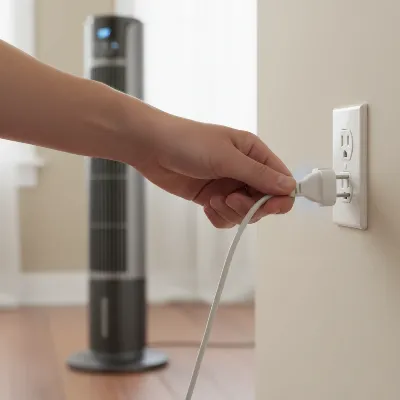 A person's hand unplugging a tower fan from a wall outlet, emphasizing safety before troubleshooting. The fan is sleek, modern, and gray. The background shows a neutral-colored wall and floor.
Step-by-Step Troubleshooting to Revive Your Fan
Once you’ve ensured safety, you can begin systematically troubleshooting your tower fan. Start with the simplest potential issues and gradually work your way to more complex internal checks.
Check the Power Supply
|
Our Picks for the Best Tower Fan in 2026
As an Amazon Associate I earn from qualifying purchases.
|
||
| Num | Product | Action |
|---|---|---|
| 1 | Dreo Tower Fan for Bedroom, 25ft/s Velocity Quiet Floor Fan, 90° Oscillating Fans for Indoors with 4 Speeds, 4 Modes, 8H Timer, Bladeless Fan, Standing Fans, Silver, Nomad One (DR-HTF007) |

|
| 2 | PELONIS 40-Inch Tower Fan for Bedroom, Fan That Blows Cold Air, Oscillating Fan with Innovative Washable Design, 2000 CFM, 28ft/s Airflow, 4 Speeds + 2 Modes, 90° Oscillation, 23dB Quiet |
|
| 3 | Lasko Elevation Adjustable Tower Fan 42”-54”, Pedestal Fan, 31 ft/s Airflow, Quiet 28 dB, 90° Oscillation, 12h Timer, Remote, Black, EST100 |
|
| 4 | Honeywell QuietSet Whole Room Oscillating Tower filter Fan with Remote, White, HYF260 |
|
| 5 | Dreo Tower Fan for Bedroom, 90° Oscillating Standing Fans for Room with 4 Speeds, 3 Modes, 28dB Quiet for Sleep, 25ft/s Velocity, 8H Timer, Remote, Living Room, Office, Home, Black |
|
| 6 | Lasko High Velocity Oscillating Tower Fan for Bedroom, Garage, Basement, and Gym with Remote Control, Timer, 3 Powerful Speeds, 35" Silver/Black, U35115 |
|
| 7 | LEVOIT Tower Fan for Bedroom, 25ft/s Velocity Standing Fan with 28dB Quiet for Sleep, Remoter, 12H Timer, 5 Speeds, 4 Modes, 90° Oscillation for Home, Office, Indoor, Bladeless 36 inch, White |
|
| 8 | Honeywell QuietSet Whole Room Tower Fan-Black, Oscillating Tower Fan with Remote, HYF290B |
|
| 9 | Dreo Tower Fan for Bedroom, 2026 Upgraded DC Motor, 28ft/s High Velocity, 20dB Ultra Quiet Standing Fan, 8 Speeds 4 Modes, 90° Oscillating Bladeless Fan for Indoors, Floor Fans with Remote, Black |
|
| 10 | DREO Tower Fan for Bedroom, 4 Speeds, 3 Modes Standing Fans for Room with 90° wide Oscillating, 28dB Quiet for Sleep, 25ft/s Velocity, 29ft Coverage, 8H Timer, Remote, Living Room, Office, Home, White |
|
The most common reason a tower fan won’t turn on is a lack of power. First, confirm that the electrical outlet itself is working by plugging in another small appliance, like a lamp or phone charger. If the other appliance also fails to work, the problem lies with the outlet or your home’s circuit breaker. Check your electrical panel and reset any tripped breakers. If the outlet works, turn your attention to the fan’s power cord and plug. Inspect the cord along its entire length for any cuts, kinks, or frays. Some tower fans also incorporate a small, replaceable fuse inside the plug itself to protect against power surges. If your plug has a small, often rectangular compartment that can be opened with a screwdriver or a slide-out tray, check for a blown fuse. A blown fuse will have a broken filament and will need to be replaced with one of the same amperage rating.
Evaluate Controls and Remote
If the power supply appears to be in order, the next step is to examine the fan’s controls. If your tower fan uses a remote control, start by replacing the batteries. A dead battery is a surprisingly frequent cause of a non-responsive fan. Also, ensure there are no obstructions between the remote and the fan’s infrared receiver. If the remote still doesn’t work, or if your fan doesn’t have a remote, inspect the physical buttons on the fan’s control panel. Sometimes, buttons can become stuck or unresponsive due to dirt or wear. Press each button firmly to see if it engages. For some electronic fans, simply unplugging the unit for a few minutes and then plugging it back in can reset the internal electronics, much like restarting a computer.
Address Internal Obstructions and Overheating
Tower fans draw air through narrow vents, making them particularly susceptible to dust and debris buildup. Over time, this accumulation can clog the internal components, restrict airflow, and cause the motor to overheat. Many fans have a thermal cutoff switch that automatically shuts the unit off if it gets too hot to prevent damage. To address this, you’ll need to carefully disassemble the outer casing of your tower fan. Refer to your fan’s manual for specific instructions, as disassembly varies by model. Once the casing is open, use a can of compressed air or a vacuum cleaner with a brush attachment to thoroughly clear away any dust from the fan blades, motor housing, and internal vents. Ensure no foreign objects are lodged within the fan mechanism.
Examine the Motor and Bearings
If your fan receives power but still doesn’t turn on or makes a humming sound without spinning, the issue might be with the motor or its bearings. With the fan unplugged and the casing open (if you’ve removed it for cleaning), try to manually turn the fan’s blower shaft. If it feels stiff, sticky, or resists movement, the motor bearings might be seized due to dried-out lubricant or dust buildup. You can try applying a few drops of a light household lubricant, such as 3-in-1 oil, to the visible motor shaft areas. Avoid using WD-40 for long-term lubrication, as it’s primarily a solvent. If the motor hums but the shaft spins freely, the problem could be a faulty starting capacitor, which is a more advanced electrical repair. Some motors also contain an internal thermal fuse, which blows if the motor overheats. Replacing this fuse often requires desoldering and soldering, a task best left to those with electrical repair experience.
> “Often, the simplest solution is the correct one. Always start by checking the power source and working outwards before attempting internal repairs.” – Dr. Elena Petrova, Electrical Engineering Specialist
When to Consider Professional Help or Replacement
While many tower fan issues can be resolved with DIY troubleshooting, there are instances when it’s more practical or safer to seek professional assistance or invest in a new unit. If, after checking all the power supply options, cleaning, and basic lubrication, your fan still shows no signs of life, the motor itself might be completely dead. A dead motor usually means no sound at all, even a hum, when power is applied. Issues involving complex internal wiring, such as a faulty starting capacitor or a short within the motor windings, also typically fall outside the scope of average DIY repair.
Consider the age and cost of your fan. If it’s an older, inexpensive model and requires significant internal component replacement, the repair cost might outweigh buying a brand-new fan with a warranty. For high-end models or if you’re uncomfortable with electrical work, consulting a qualified appliance repair technician is always a wise choice to ensure the repair is done safely and correctly.
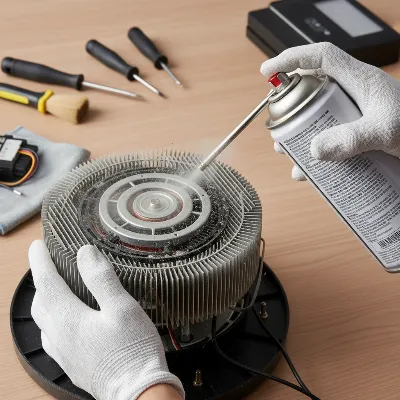 A person cleaning the internal components of a tower fan with compressed air, highlighting the importance of maintenance. The fan casing is open, revealing the dusty interior.
Preventative Maintenance for a Longer-Lasting Tower Fan
The best way to avoid your tower fan not turning on is through consistent preventative maintenance. Simple habits can significantly extend the lifespan of your appliance and ensure it’s ready when you need it most.
Regular cleaning is paramount. Dust is the enemy of any fan. Make it a routine to wipe down the exterior of your tower fan weekly. More importantly, at least every few months, or before and after seasonal storage, carefully open the fan casing (if your model allows) and thoroughly clean the internal components. Use compressed air to dislodge dust from hard-to-reach areas like the motor, blower, and vents. A soft brush or microfiber cloth can clean the blades and other surfaces. When storing your fan during off-seasons, keep it in a cool, dry place, ideally covered to prevent dust accumulation. Regularly inspect the power cord for any signs of wear and tear, and replace it immediately if damage is found. These small efforts can prevent major malfunctions and keep your tower fan operating efficiently for years to come.
Conclusion
A tower fan that won’t turn on can be a minor inconvenience or a sign of a more significant problem. By systematically checking the power supply, evaluating the controls, addressing internal obstructions, and examining the motor and bearings, you can often diagnose and fix the issue yourself. Remember to prioritize safety by always unplugging the fan before any inspection or repair. While some complex issues might require professional help or warrant a replacement, many common faults are simple DIY fixes. Consistent cleaning and preventative maintenance are your best allies in ensuring your tower fan provides reliable comfort for seasons to come. What simple maintenance task will you perform today to extend the life of your appliances?
Frequently Asked Questions
What tools are essential for fixing a tower fan?
For most DIY tower fan repairs, you'll primarily need a screwdriver set (Phillips and flathead), a can of compressed air, and a microfiber cloth. For more advanced electrical checks, a multimeter might be useful, but proceed with caution if unfamiliar with its use.
How often should I clean my tower fan to prevent issues?
Ideally, wipe down the exterior of your tower fan weekly. For internal cleaning, aim for every few months or at least twice a year, especially before and after seasonal storage, to prevent dust buildup and overheating.
Is it always safe to open my tower fan for repairs?
It is safe to open your tower fan if you follow proper safety procedures, most importantly, always unplugging it first. However, if you are uncomfortable with electrical components or the disassembly process, itu2019s best to consult a professional to avoid injury or further damage.
My tower fan hums but the blades don't spin. What does that mean?
If your tower fan hums but the blades don't spin, it often indicates a seized motor bearing or a faulty starting capacitor. Try lubricating the motor shaft with a few drops of 3-in-1 oil; if that doesn't work, a professional might be needed to address the capacitor or motor.
Can a faulty remote stop my tower fan from turning on?
Yes, a faulty remote can prevent your tower fan from turning on if it's the primary means of control. Check the remote's batteries first, ensure a clear line of sight to the fan's sensor, and try using the fan's manual control panel, if available.
Fix a Tower Fan That Won't Turn On
This guide provides a systematic approach to troubleshoot and fix a tower fan that isn't powering on, starting with simple checks and progressing to internal inspections.
First, confirm the electrical outlet works by plugging in another appliance. If the outlet is fine, inspect the fan's power cord for damage and check for a blown fuse inside the plug. Replace any damaged cords or blown fuses with the correct amperage.
If your fan has a remote, replace its batteries and ensure no obstructions block the signal. For manual controls, firmly press each button to check for responsiveness. Unplugging the fan for a few minutes can also reset electronic controls.
Carefully disassemble the fan's outer casing, referring to your manual for specific instructions. Use compressed air or a vacuum with a brush attachment to thoroughly clean dust from the fan blades, motor housing, and internal vents. Remove any foreign objects.
With the fan unplugged and casing open, try to manually turn the blower shaft. If it's stiff, apply a few drops of light household lubricant like 3-in-1 oil to the motor shaft. If the motor hums but doesn't spin, it might indicate a faulty starting capacitor or internal thermal fuse, which may require professional repair.

I appreciate the emphasis on safety, especially unplugging the fan before doing anything. My fan had been making a weird noise before it completely died. I followed the instructions to check for internal obstructions and found a small piece of plastic stuck in the impeller assembly. Removed it carefully, and now it’s quiet and working perfectly. Thanks for the clear, easy-to-follow advice!
I tried these steps for my old Dyson fan, but it didn’t quite fix it. The part about checking the remote battery was helpful, as mine was dead, but even after replacing it, the fan still wouldn’t turn on. I went through the power cord checks and looked for obstructions, but no luck. It seems like my issue might be more serious, maybe with the motor itself, which is a bit beyond what I’m comfortable fixing.
This guide was a lifesaver! My Lasko tower fan just stopped working out of nowhere, and I was ready to toss it. Following the steps to check the power supply and then the internal obstructions, I found a huge dust buildup around the motor. A quick clean and it’s running perfectly again. So glad I didn’t have to buy a new one!
Great tips! My Honeywell tower fan was acting up, and I suspected it was something simple. The advice about checking the circuit breaker was spot on – turns out it had tripped, and I hadn’t even thought to look there. It’s back to cooling my bedroom like a champ. Definitely saved me a service call or a new purchase.